~$ cat How_an_Android_app_could_escalate_its_privileges_Part4.txt
This last part about Android Accessibility Service presents the simplest application, and surely the most powerful one of the four. The goal is here to make the app
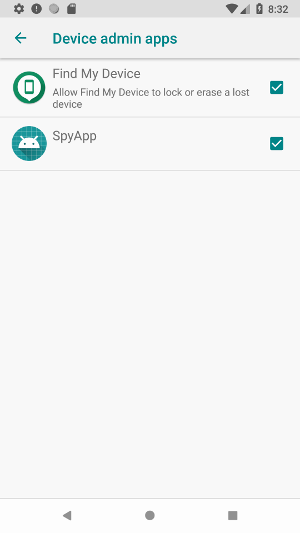
an administrator of the device.
By “administrator”, I don’t mean “root”
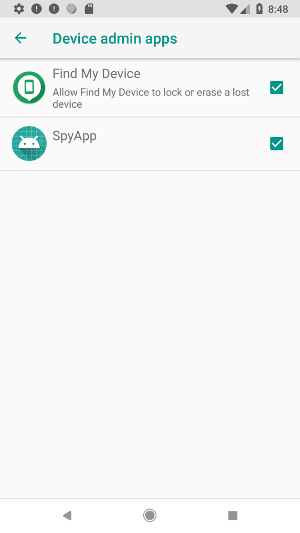
The principle remains the same: the malicious app opens the Settings at a specific page, and forces the click on a widget. However, there is no need here to browse through
the settings, and it makes the attack really fast, and even easier!
Configuration
As the holy documentation says:
To use the Device Administration API, the app’s manifest must include the following:
- A subclass of DeviceAdminReceiver that includes the following:
- The BIND_DEVICE_ADMIN permission.
- The ability to respond to the ACTION_DEVICE_ADMIN_ENABLED intent, expressed in the manifest as an intent filter.
- A declaration of security policies used in metadata.
I created then a class named MyDeviceAdminReceiver extending DeviceAdminReceiver, and registered the <receiver> in the Manifest. And as usual, there is also the custom
accessibility service:
1 |
|
For the file accessibility_config, nothing new:
1 | <accessibility-service xmlns:android="http://schemas.android.com/apk/res/android" |
We still listening for the typeWindowContentChanged events, on Settings and the malicious app. As usual, I set canRetrieveWindowContent to true, and
added flagReportViewIds in order to make it easier.
In the admin_config, I only wrote:
1 |
|
Main activity and Receiver
The DeviceAdminReceiver contains nothing except onReceive, where I only print the action. However, it could be very useful for an attacker, to launch to
attack as soon as the admin permission id granted:
1 | public class MyDeviceAdminReceiver extends DeviceAdminReceiver { |
A bunch of callback routines can be used to react depending on the action: onEnabled, onDisable, onDisableRequested, onLockTaskModeEntering etc.
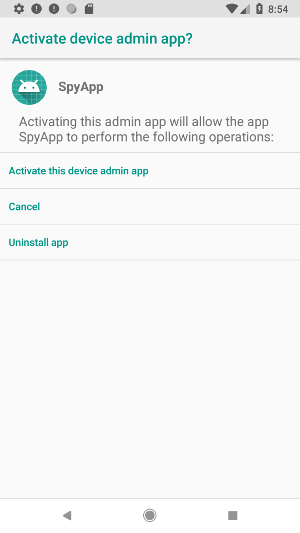
In MainActivity it’s also really simple: we check if the app is already an admin, and if it’s not the case and if the Accessibility Service in On, then
the Settings are open at the right page:
1 |
|
It’s normally possible to put an extra string explaining why this status is requested by the app, but it’s obviously not the goal in this case.
The custom Accessibility Service
As the Settings opens at this specifig page, the only thing we have to do is to click on “Activate this device admin app”, and to quit. First thing I did was
to get the id of this widget:
and then, I used a boolean activate which indicates if the user has landed here because of the malicious app or not. Not need here to recursively scan the page.
I used the routine findAccessibilityNodeInfosByViewId which returns a list of widgets having the given id (I then assume that it’s the first one).
Then, a click is performed on this widget or on its parent.
1 | private boolean activate; |
Since there are only 2 apps registered in the config file, a simple if/else is sufficient. As soon as the button is clicked, the DeviceAdminReceiver.onReceive is called
and the malicious code can be triggered.